Docs · Unwanted mail
Stop a sender's mail
Open an email you don't want and click Stop mail. That sender's mail like it leaves your Inbox for good, and Undo brings it back.
Open an email you don't want and click Stop mail in the toolbar. The email leaves your Inbox, and new mail like it from that sender skips your Inbox from then on.
Steps
1. Open the email
Click the email in your Inbox. Stop mail is at the top right of the message.

You can also right-click the email in the list and choose Stop mail.
2. Check what Stop mail does
Click the arrow beside Stop mail to see it next to the actions for mail like this. Stop mail stops mail like this from this sender only. Their other mail still reaches you.
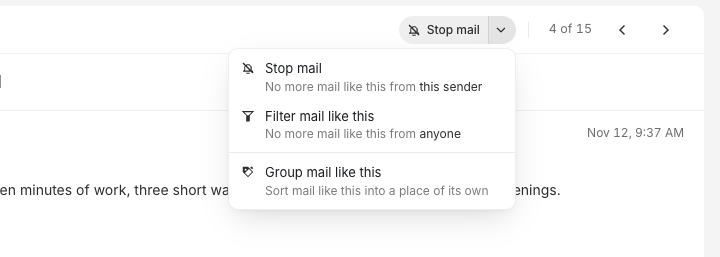
To stop mail like this from anyone, use Filter mail like this. See Filters.
3. Click Stop mail
The email leaves your Inbox at once, and Alrighty says Stopped mail from the sender's name.
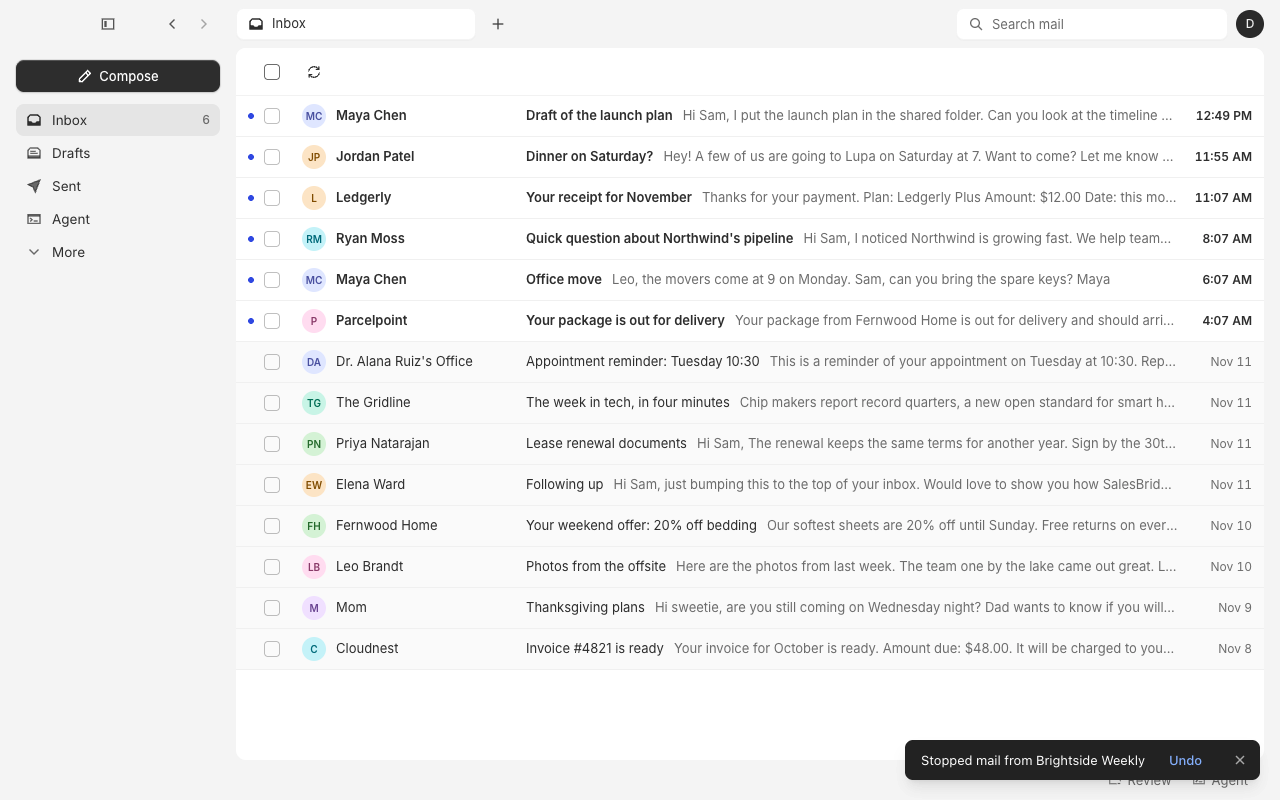
Alrighty also leaves the sender's mailing list when the email offers a way to.
4. Find the stopped mail
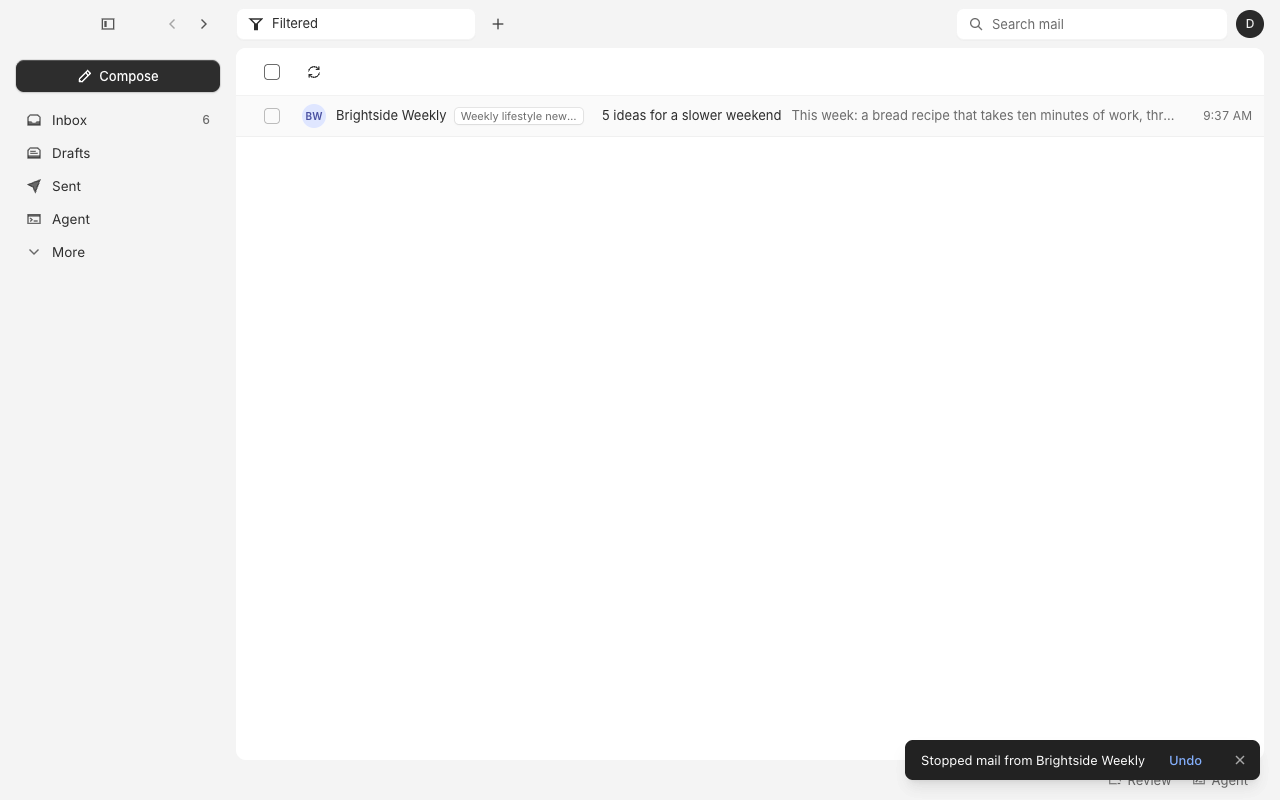
Click More in the sidebar, then Filtered. The email is there, tagged with the kind of mail Stop mail stopped. New mail of that kind from the sender lands here too.
Undo Stop mail
Right after you stop a sender, click Undo in the message at the bottom of the window, or press ⌘Z (Ctrl+Z on Windows and Linux). The email goes back to your Inbox.
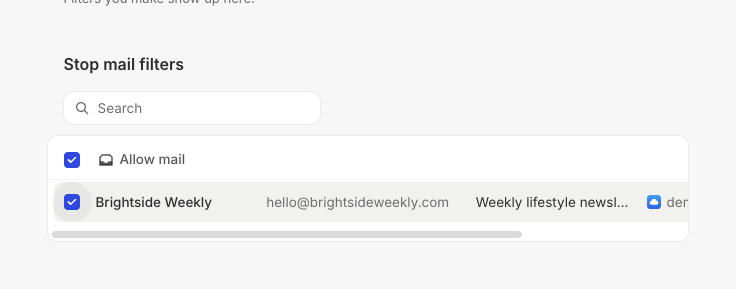
Later, open Settings → Filters. Stop mail filters lists each sender you stopped and the kind of mail it stops. Check the sender, then click Allow mail. Their new mail of that kind reaches your Inbox again. The emails it already stopped stay in Archive.
Questions
Does Stop mail delete the email?
No. The email moves to Archive, and it shows in Filtered.
Will I still get other mail from that sender?
Yes. Stop mail stops only mail like the email you stopped. To stop a whole list of senders at once, see Clean up.
Where do I see every sender I stopped?
In Settings → Filters, under Stop mail filters. Use its search to find one sender.