Docs · Accounts
Connect Outlook
Add an Outlook.com, Hotmail, Live or Microsoft 365 account to Alrighty by signing in on Microsoft's own page.
Outlook signs in on Microsoft's own page, so Alrighty never sees your Microsoft password. It works with Outlook.com, Hotmail, Live and Microsoft 365 addresses.
Steps
1. Start in Alrighty
Choose Outlook and click Continue. Your browser opens on Microsoft's sign-in page. Add an account shows where to start if you already have one account.
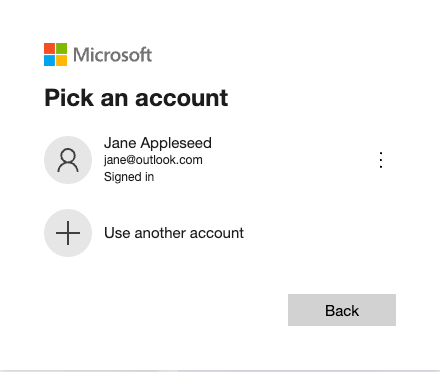
2. Pick your account
If you're signed in to more than one Microsoft account, pick the one you want to add, or click Use another account and sign in. With one account, Microsoft may skip this step and the next.
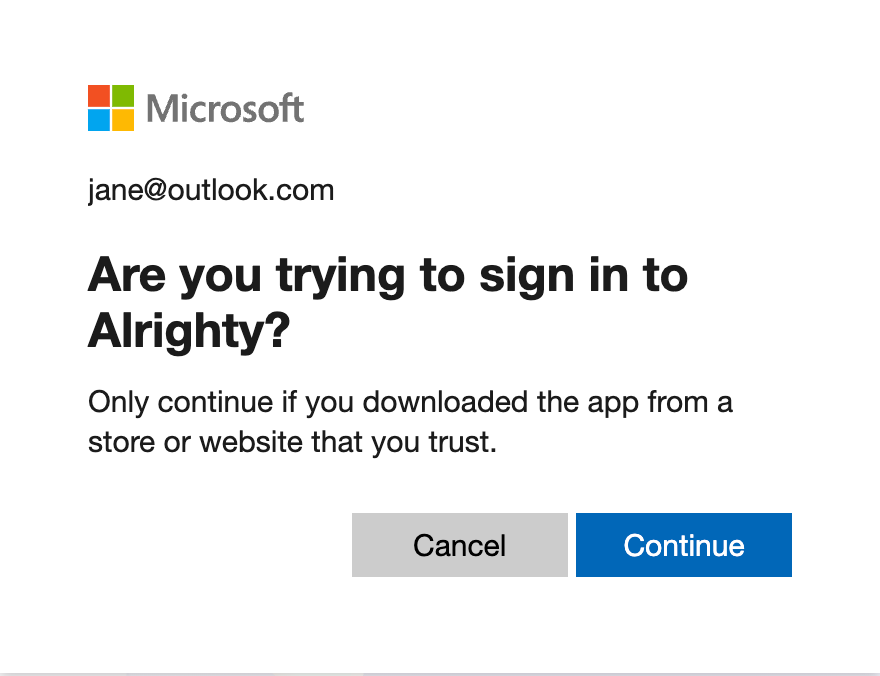
3. Confirm the sign-in
Microsoft asks if you are trying to sign in to Alrighty. Click Continue.
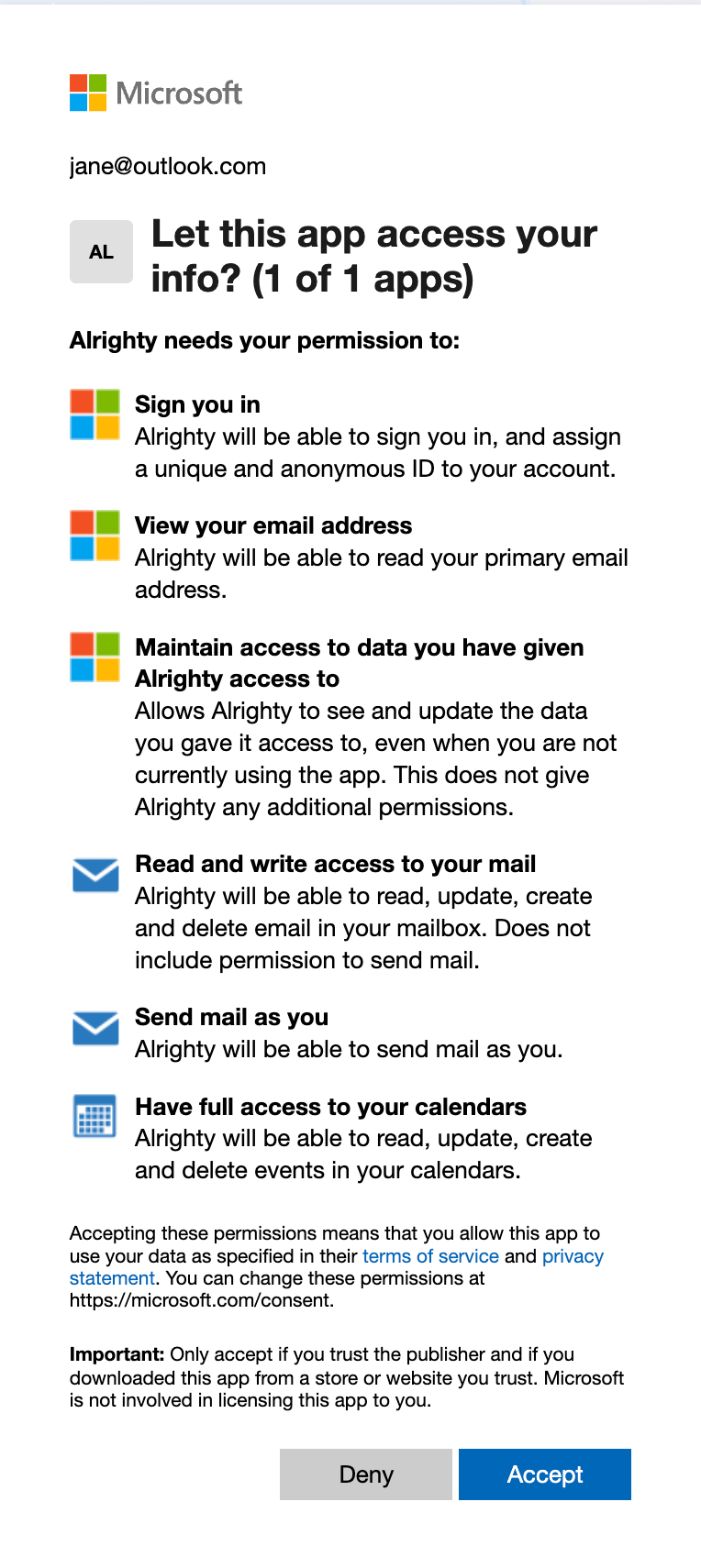
4. Accept the permissions
Microsoft lists what Alrighty can do: read and send your mail, and read and change your calendars so you can answer invitations. Click Accept.
5. Come back to Alrighty
The browser says You're all set. Go back to Alrighty. Alrighty adds the account, and your mail starts arriving.
Questions
My work account says I need admin approval
Some Microsoft 365 organizations only let apps in that an admin approves. Ask your IT admin to approve Alrighty.
How do I disconnect Alrighty from Microsoft?
Remove the account in Alrighty (Remove an account). Then remove Alrighty at account.live.com/consent/Manage.