Docs · AI assistants
Watch your assistant work
When your AI assistant writes or changes mail, it works in its own tab in Alrighty. You watch, take over, and click Send yourself.
When you ask a connected assistant to write or change mail, Alrighty opens an agent tab for it. The assistant works there with the app's own actions while you keep reading. When a draft is ready, the tab comes to the front and waits for you to click Send.
Steps
1. Connect your assistant
Connect Claude, ChatGPT, Codex, Cursor or another assistant to Alrighty. See Connect an AI assistant.
2. Ask it to do something
In your assistant's chat, ask for a task, like "Reply to Jordan that I'm in for Saturday." A new tab opens beside your own and names each step, like Starting a reply or Writing the draft. You can stay on your tab while it works.

3. Review and send
When the assistant asks to send, the agent tab comes to the front and says Waiting for you to send. A ring marks Send. Read the email, and change anything you want. Then click Send, or press ⌘Enter (Ctrl+Enter on Windows and Linux).
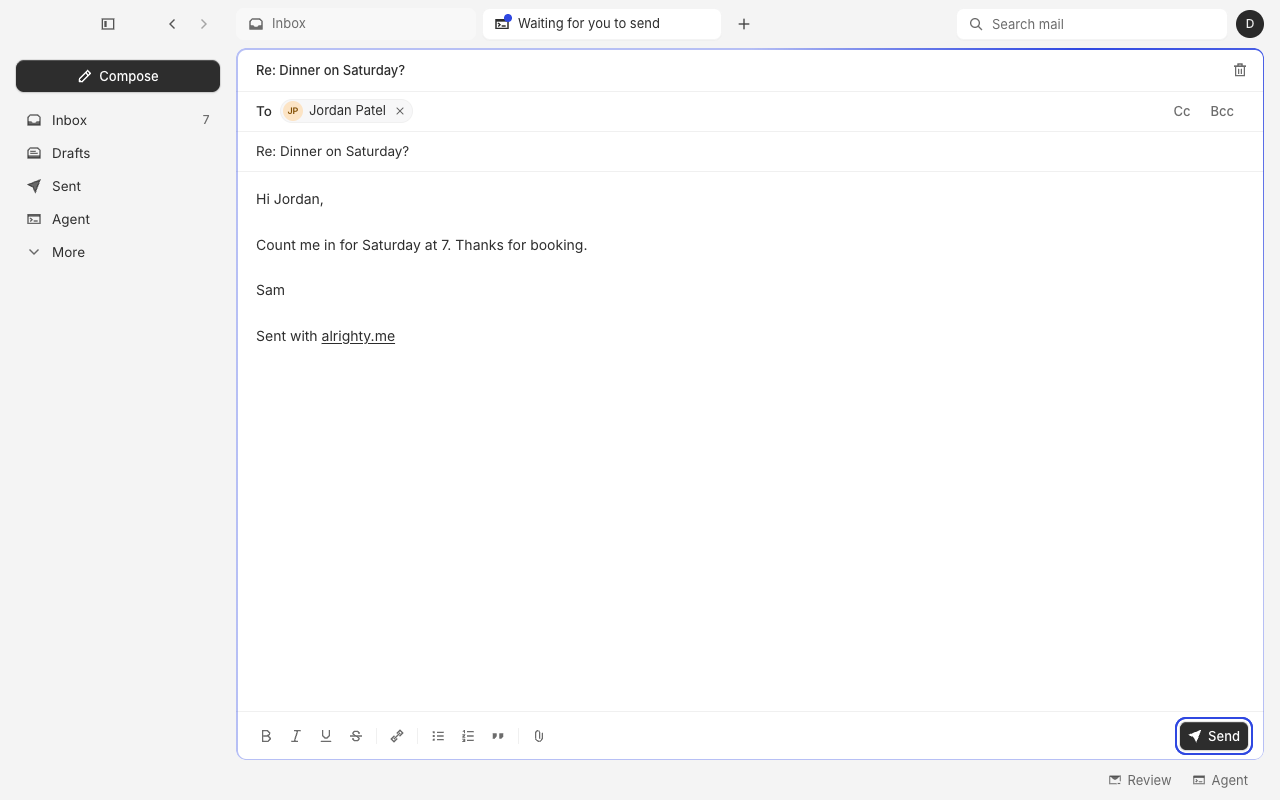
To stop the email instead, click the trash icon at the top right of the draft.
4. Take over or close the tab
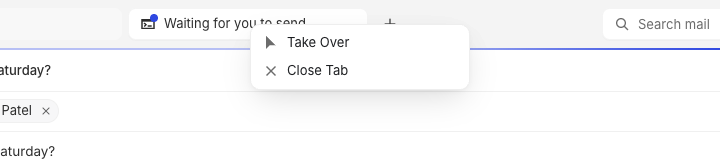
Right-click the agent tab. Take Over stops the assistant and leaves the tab and its draft to you. Close Tab stops the assistant and closes the tab.
Send without asking
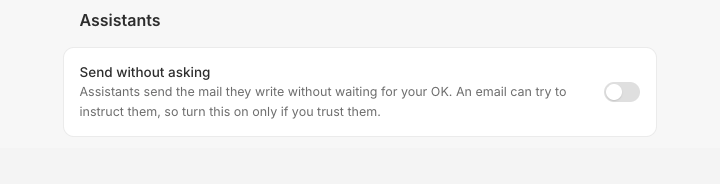
To let assistants send without waiting for you, open Settings → General and turn on Send without asking. An email can contain instructions aimed at an assistant, so turn it on only if you trust your assistant.
Questions
Can the assistant send mail without me?
Not unless you turn on Send without asking. Until then, an email the assistant writes sends only when you click Send in the agent tab.
What else can the assistant do in the tab?
It can draft new emails, replies and forwards, archive, delete, mark read or unread, and move mail into a group. To stop a sender, or to make a group or a filter, it opens the form for you to finish. Connect an AI assistant lists every tool.
What happens to the draft when I take over?
It stays open in the tab, and it is yours to edit, send or discard. The assistant can't change it anymore.
Can I keep reading mail while the assistant works?
Yes. The agent tab is a separate tab. Stay on your own tab, and switch to the agent tab when you want to watch.