Docs · Accounts
Connect Gmail
Add a Gmail account to Alrighty by signing in on Google's own page, or with an app password if you prefer.
Gmail signs in on Google's own page, so Alrighty never sees your Google password.
Steps
1. Start in Alrighty
Choose Gmail and click Continue. Your browser opens on Google's sign-in page. Add an account shows where to start if you already have one account.
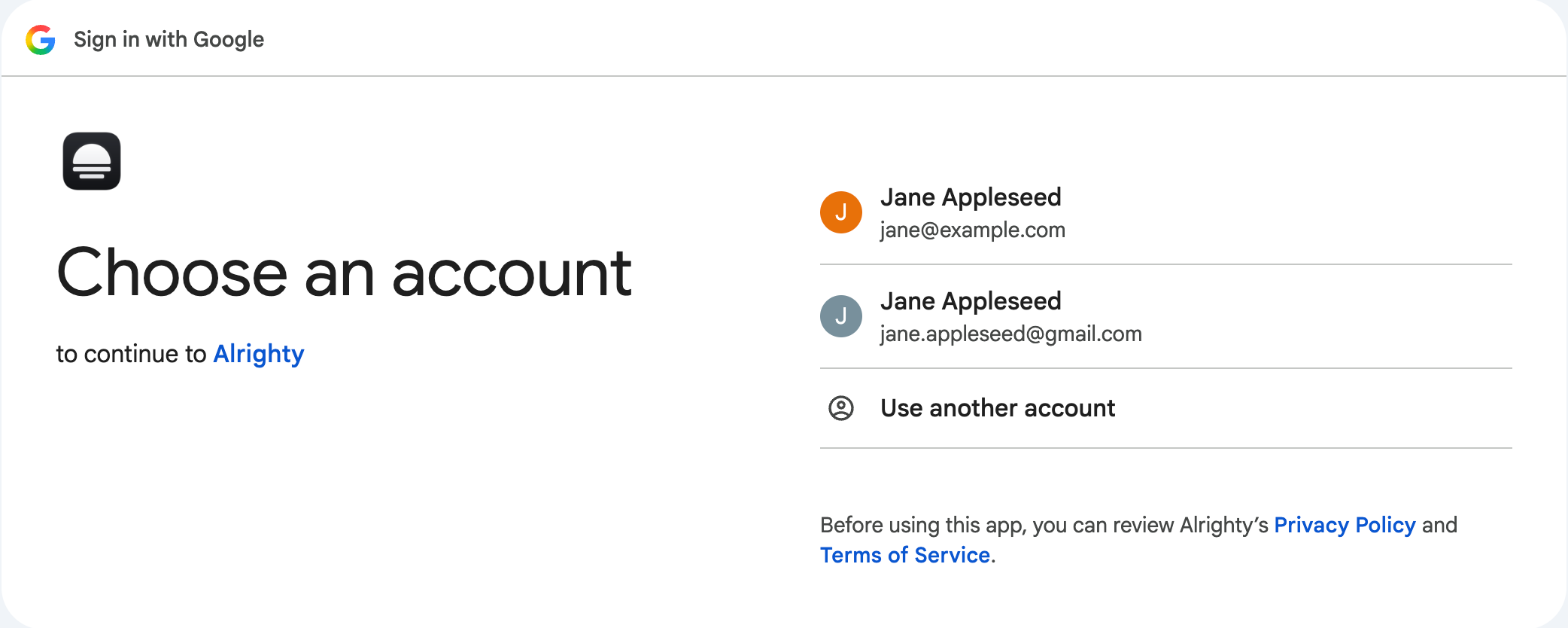
2. Choose your account
Pick the Google account you want to add, or click Use another account and sign in.
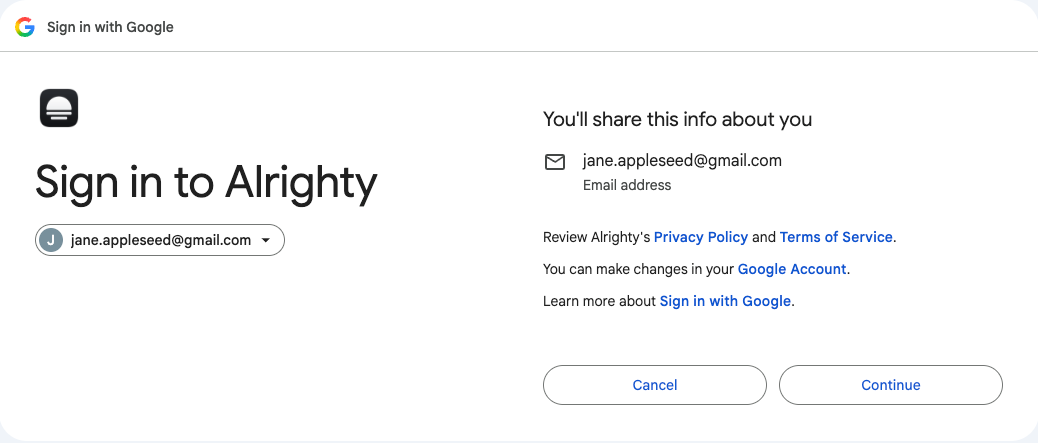
3. Confirm the sign-in
Google shows the address Alrighty will see. Click Continue.
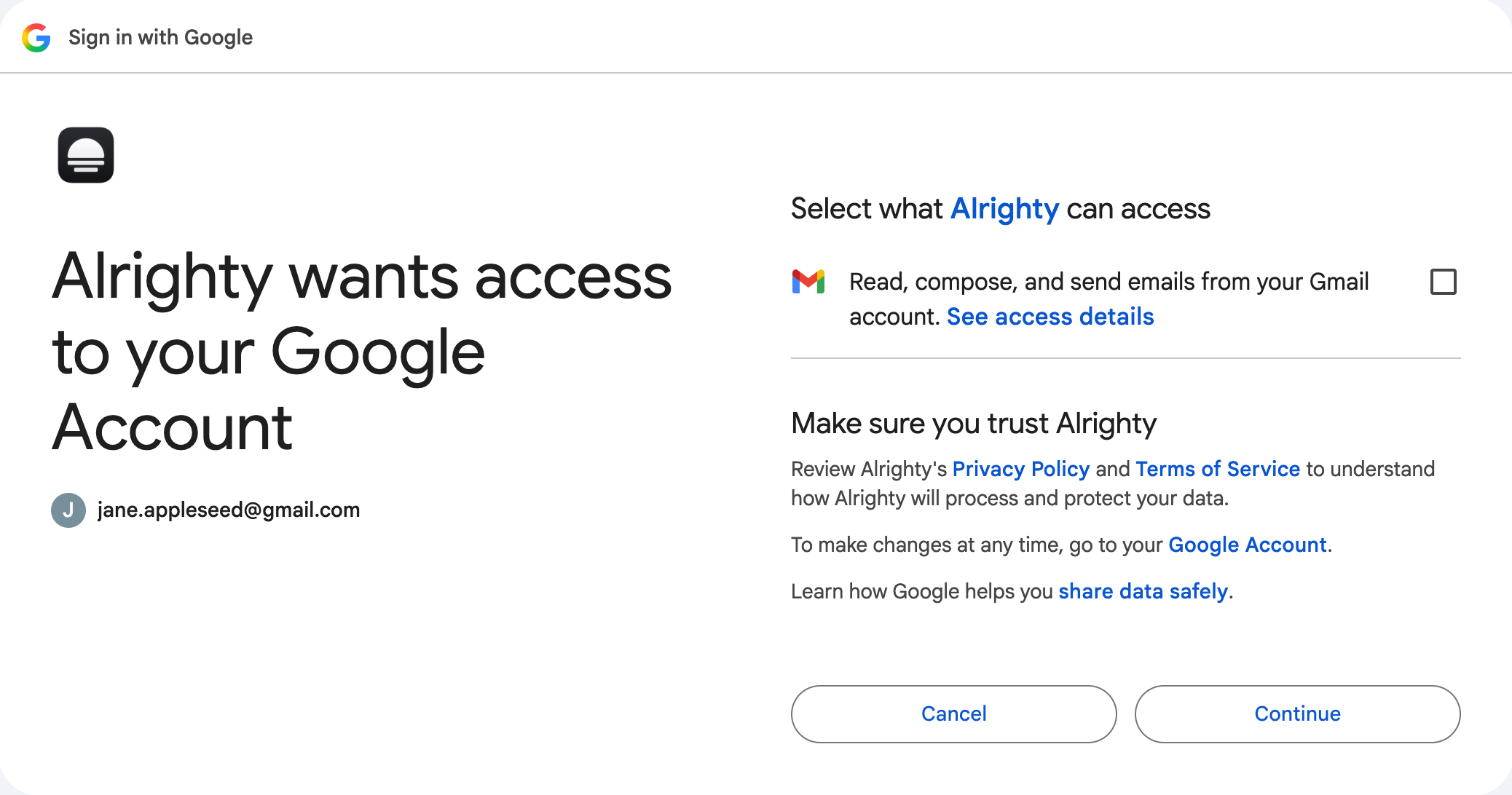
4. Allow access to Gmail
Tick the box next to Read, compose, and send emails from your Gmail account, then click Continue. Alrighty needs this to show and send your mail.
5. Come back to Alrighty
The browser says You're all set. Go back to Alrighty. Alrighty adds the account, and your mail starts arriving.
Use an app password instead
If you'd rather not sign in through the browser, use an app password:
- Turn on 2-Step Verification for your Google account.
- Create an app password at myaccount.google.com/apppasswords.
- In Alrighty, click Use an app password under the provider list. Enter your address and the app password.
Questions
Alrighty says mail access was not granted
The Gmail box was not ticked. Start again and tick it on the last Google screen.
How do I disconnect Alrighty from Google?
Remove the account in Alrighty (Remove an account). You can also remove Alrighty at myaccount.google.com/connections.