How to stop emails from X (Twitter)
X has one switch for all of its notification email. Open Settings and privacy, Notifications, Email notifications, and turn it off. Here is how.
By Emmett Miller
To stop emails from X, formerly Twitter, open Settings and privacy, click Notifications, then Email notifications, and switch Email notifications off. That one switch stops every type of notification email. X still sends account emails, such as password changes, which no setting turns off.
Turn off X emails on a computer
These steps match X's settings as of November 2026.
- On x.com, click More in the left column, then Settings and privacy.
- Click Notifications.
- Click Email notifications.
- Switch Email notifications off at the top of the page.
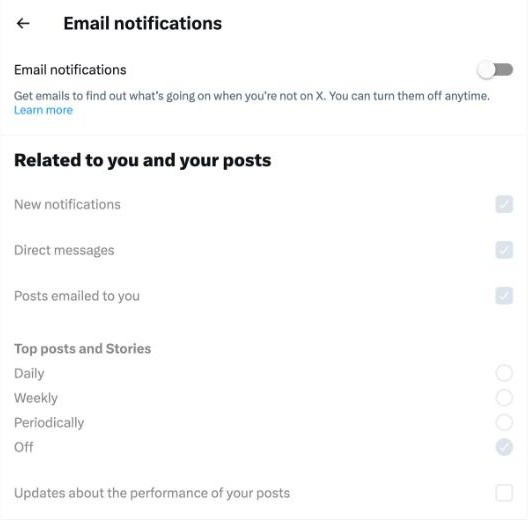
When the main switch is off, every box below it turns grey. X saves the change straight away, so there is no Save button. Its help page, How to update your email preferences, gives the same path for the app: Settings and privacy, Notifications, then Email notifications.
Keep some X emails and turn off the rest
To keep a few types, leave the main switch on and clear the boxes for the rest. The page has two groups.
- Related to you and your posts: New notifications, Direct messages, Posts emailed to you, Top posts and Stories, and Updates about the performance of your posts.
- From X: product and feature news, tips, "Things you missed since you last logged into X", news about partner products, research surveys, account suggestions, business product tips and money-related notifications.
Top posts and Stories has its own choices: Daily, Weekly, Periodically or Off. Set it to Off to stop the round-up of popular posts.
Stop the X notification digest
X's help page says it sends one digest email for all your unread notifications instead of one email for each like or reply. To stop it, clear New notifications under Related to you and your posts. Direct messages are not part of the digest. Each new message sends its own email until you clear Direct messages.
Unsubscribe from one X email
The unsubscribe link in the footer of an X email works too. X's help page says it clears the box for that one type of email in your settings. It does not turn off the others.
Emails X sends anyway
X says it may send "service announcements and administrative messages" whatever your settings, such as an email asking you to confirm your address or telling you your password changed. These are about your account's security, so it is worth keeping them.
Block X in your mail app
If X keeps sending after you change the settings, send its mail to Spam or Junk from your mail app. Block the domain in the From line rather than one address, so you catch every address X sends from. That also blocks password resets, so unblock it if you need to get into your account. The steps for Gmail, Outlook and Apple Mail are in how to block a sender. For mail from stores and other apps, see how to stop marketing emails.
Stop it in Alrighty
Alrighty, a desktop mail app, lists every mailing list that sends you mail, with how often each one sends. You leave a list with one click, without opening an email or hunting for the link at the bottom. If a list keeps sending after you leave, Alrighty moves it to Junk for you. See how it works on the features page, or download Alrighty.
Questions
Is there a way to turn off all X emails at once?
Yes. In Settings and privacy, Notifications, Email notifications, switch off Email notifications at the top. That stops every type of notification email. Account and security emails still arrive.
Why do I still get emails from X?
If the main switch is off, the emails you still get are most likely account messages, such as a password change or a request to confirm your address. X sends those whatever your settings. Also check that you changed the account that uses the address the mail arrives at.
How do I stop "Things you missed" emails from X?
Clear Things you missed since you last logged into X under From X on the Email notifications page, or switch off Email notifications entirely.
Is turning off emails the same on Twitter and X?
Yes. Twitter is now X, and the settings live on x.com. The steps above work for an account you made when it was still called Twitter.