How to stop emails from Pinterest
Turn off Pinterest's emails in Settings, then Notifications, and click Save. Here are the steps on the web and in the app, and how long it takes.
By Emmett Miller
To stop emails from Pinterest, open Settings, go to Notifications, open How you get notifications, switch off Email, and click Save. Pinterest says it may take a day or two for the change to reach its mail.
If you want some Pinterest email but not all of it, you can turn off email for one kind of notification at a time instead. Both ways are below.
Turn off all Pinterest emails on a computer
These steps match Pinterest's settings as of November 2026.
- On pinterest.com, click the settings icon at the bottom left, then Settings.
- Click Notifications in the left column.
- Scroll to the bottom and open How you get notifications. It reads "Turn on or off all notifications".
- Switch off Email.
- Click Save at the bottom of the page. Nothing changes until you do.
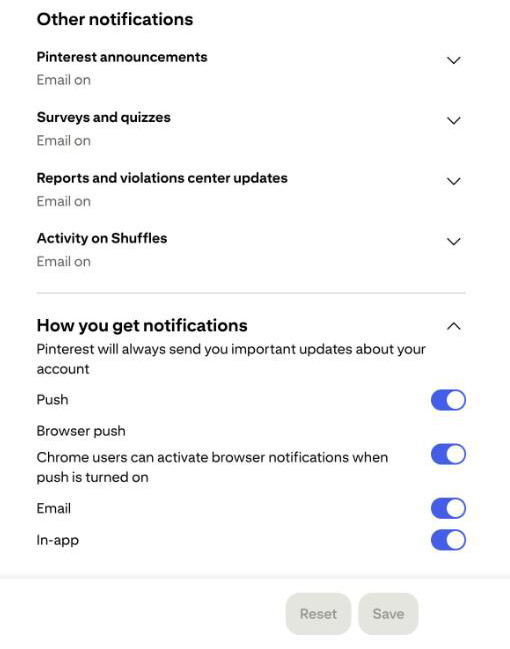
The section notes that Pinterest will always send you important updates about your account, so turning Email off does not stop those.
Turn off all Pinterest emails in the app
Pinterest's help page gives these steps for iPhone and Android:
- Tap your profile picture at the bottom right.
- Tap Notifications, then open the section for how you get notifications.
- Switch off Email, then confirm that you want to turn them all off.
Turn off one kind of Pinterest email
The same Notifications page lists every kind of notification Pinterest sends, grouped under headings like Pins you created, Pins you saved and Other notifications. Each row shows where it reaches you, for example "Push on, email on, in-app on". Open a row to switch off email for that kind alone, then click Save.
The rows that send email by default include the suggestions: Boards you might like, Searches you might like and Shopping Pins. Under Other notifications, Pinterest announcements, Surveys and quizzes, Reports and violations center updates and Activity on Shuffles are email only.
Unsubscribe from one Pinterest email
Every Pinterest email has an Unsubscribe link at the bottom. It turns off that kind of email only, so the others keep coming. Use the settings above to stop them all.
Block Pinterest in your mail app
Blocking sends Pinterest's mail to Spam or Junk without changing anything on Pinterest. Pinterest sends different kinds of mail from different addresses, so block the whole pinterest.com domain rather than one address, keeping in mind that this also catches password resets. The steps for Gmail, Outlook and Apple Mail are in how to block a sender. For mail from stores and other apps, see how to stop marketing emails.
Stop it in Alrighty
Alrighty, a desktop mail app, lists every mailing list that sends you mail, with how often each one sends. You leave a list with one click, without opening an email or hunting for the link at the bottom. If a list keeps sending after you leave, Alrighty moves it to Junk for you. See how it works on the features page, or download Alrighty.
Questions
How long does it take for Pinterest emails to stop?
Pinterest says it may take a day or two for your settings to update. If the emails keep coming after a few days, Pinterest asks you to contact its support team through its help center.
Why am I still getting Pinterest emails after turning them off?
The most common reason is that the change was never saved. On the web, the Notifications page has a Save button at the bottom, and nothing changes until you click it. If you saved and a few days have passed, contact Pinterest.
Why am I getting Pinterest emails when I don't have an account?
Someone may have signed up with your address. Pinterest's help page says to contact it if you get emails for an account you didn't create.
Can I keep messages from people and stop the suggestions?
Yes. Leave Email on under How you get notifications, and switch off email only in the suggestion rows, such as Boards you might like, Searches you might like and Shopping Pins. Then click Save.